
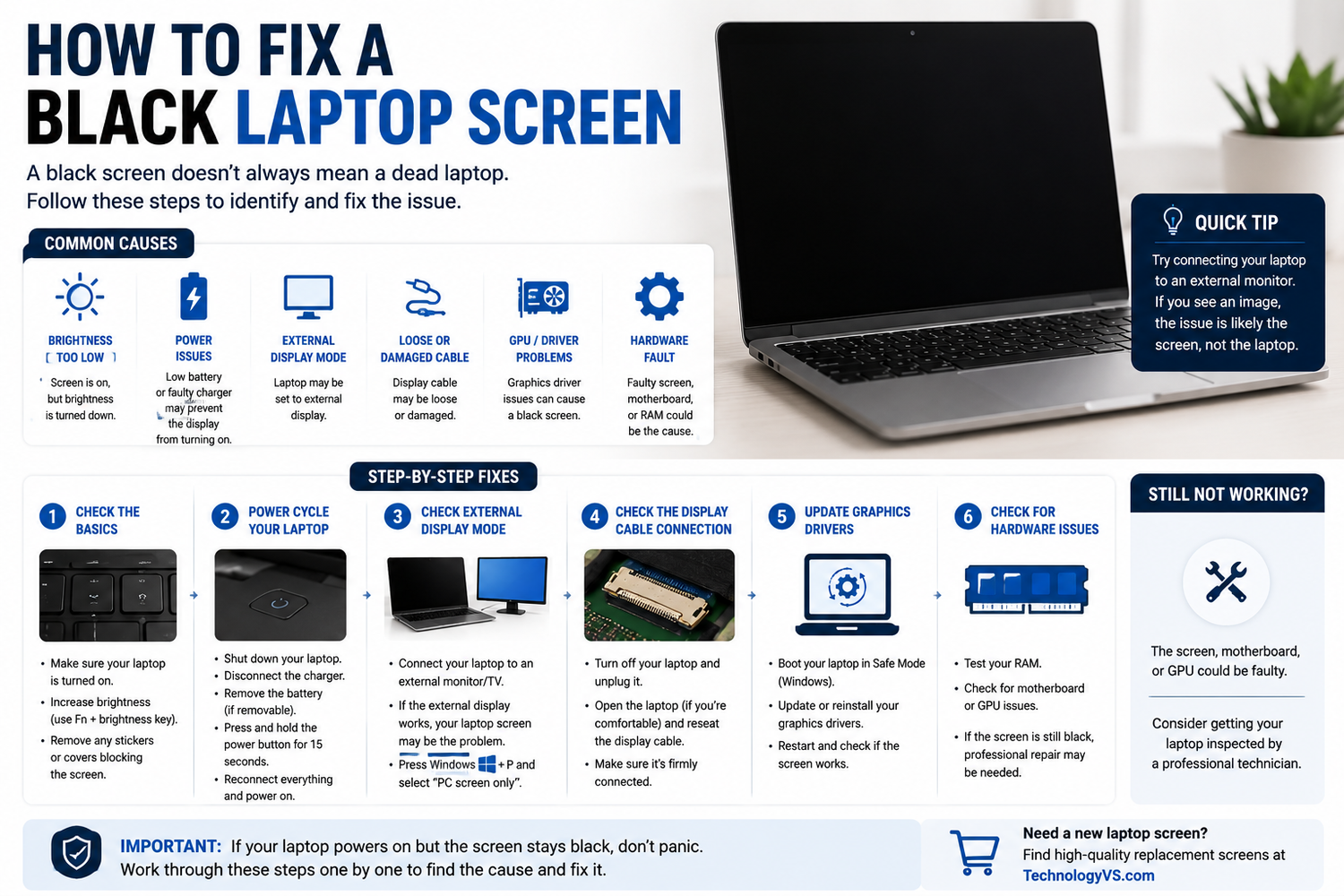
How to Fix a Black Laptop Screen
You press the power button, you hear your laptop start up, but the screen stays completely black. Here's how to diagnose and fix it.
Step 1 — Check the Basics
- Is the brightness turned up? (Fn + brightness key)
- Try a hard reset: hold power button 10 seconds, then restart
- Is it outputting to an external display? Press Fn + F4 to switch back
Step 2 — Check if Backlight is Working
Shine a torch at the screen in a dark room. If you can faintly see the desktop, the backlight has failed and the panel needs replacing.
Step 3 — Connect an External Monitor
If the external monitor works normally, the fault is with the laptop screen. If it's also black, the fault is with the GPU or motherboard.
Step 4 — Check the Screen Cable
Access the back of the screen panel and reseat the video cable connection firmly.
Step 5 — Update Display Drivers
Boot into Safe Mode and uninstall/reinstall your graphics driver.
Browse our full range at technologyvs.co.uk






Leave a comment
This site is protected by hCaptcha and the hCaptcha Privacy Policy and Terms of Service apply.