
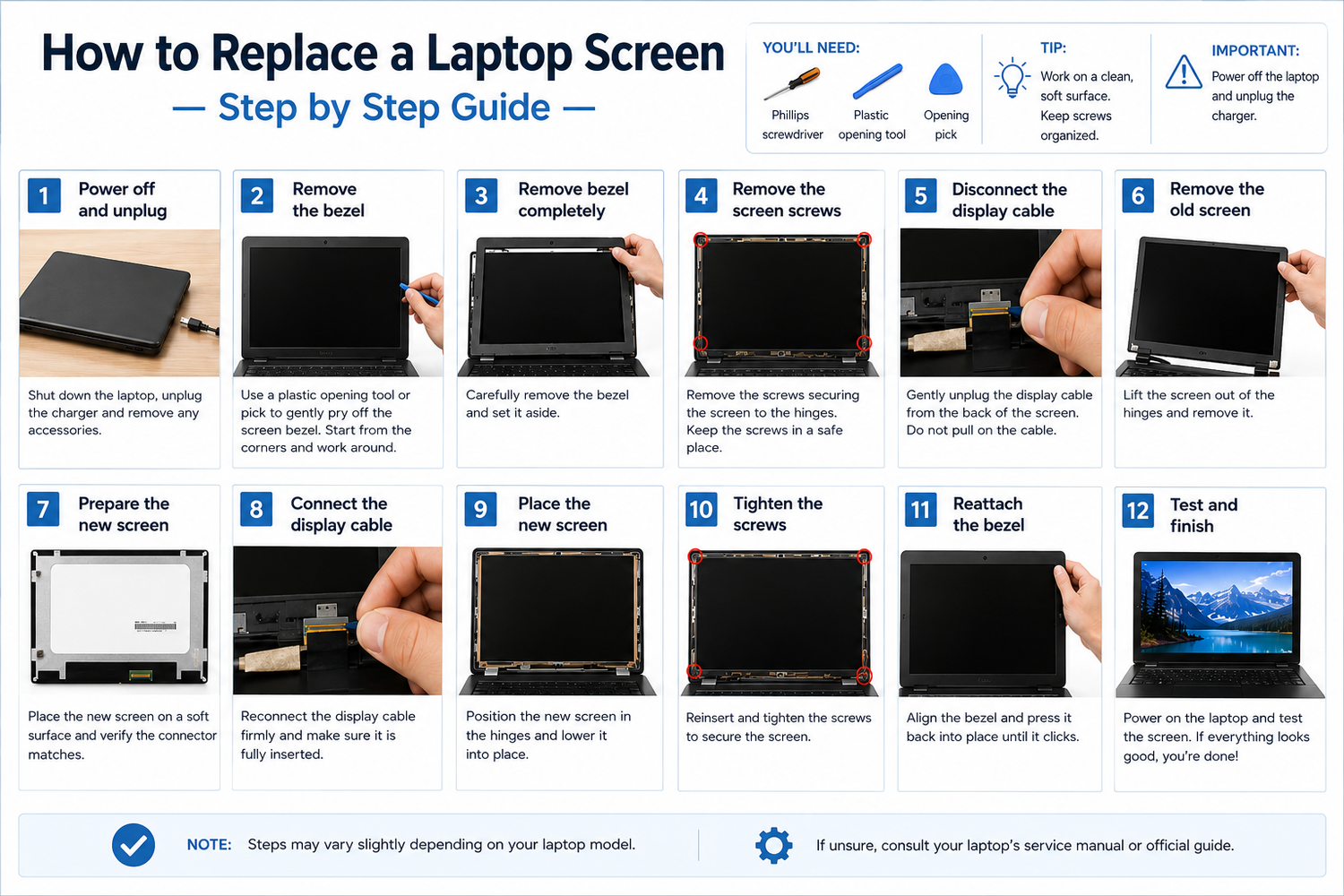
How to Replace a Laptop Screen — Step by Step Guide
A cracked, flickering or dead laptop screen doesn't mean your laptop is finished. In most cases, replacing a laptop screen is a straightforward repair that can save you hundreds of pounds compared to buying a new machine. This guide walks you through the entire process from start to finish.
Watch: Laptop Screen Replacement Video
Prefer to read? Every step is written out below. Need a screen? Shop replacement laptop screens.
What You'll Need
- A replacement laptop screen (matching your exact part number)
- A small Phillips head screwdriver
- A plastic pry tool or spudger
- A clean, flat workspace
- Optional: magnetic parts tray to keep screws safe
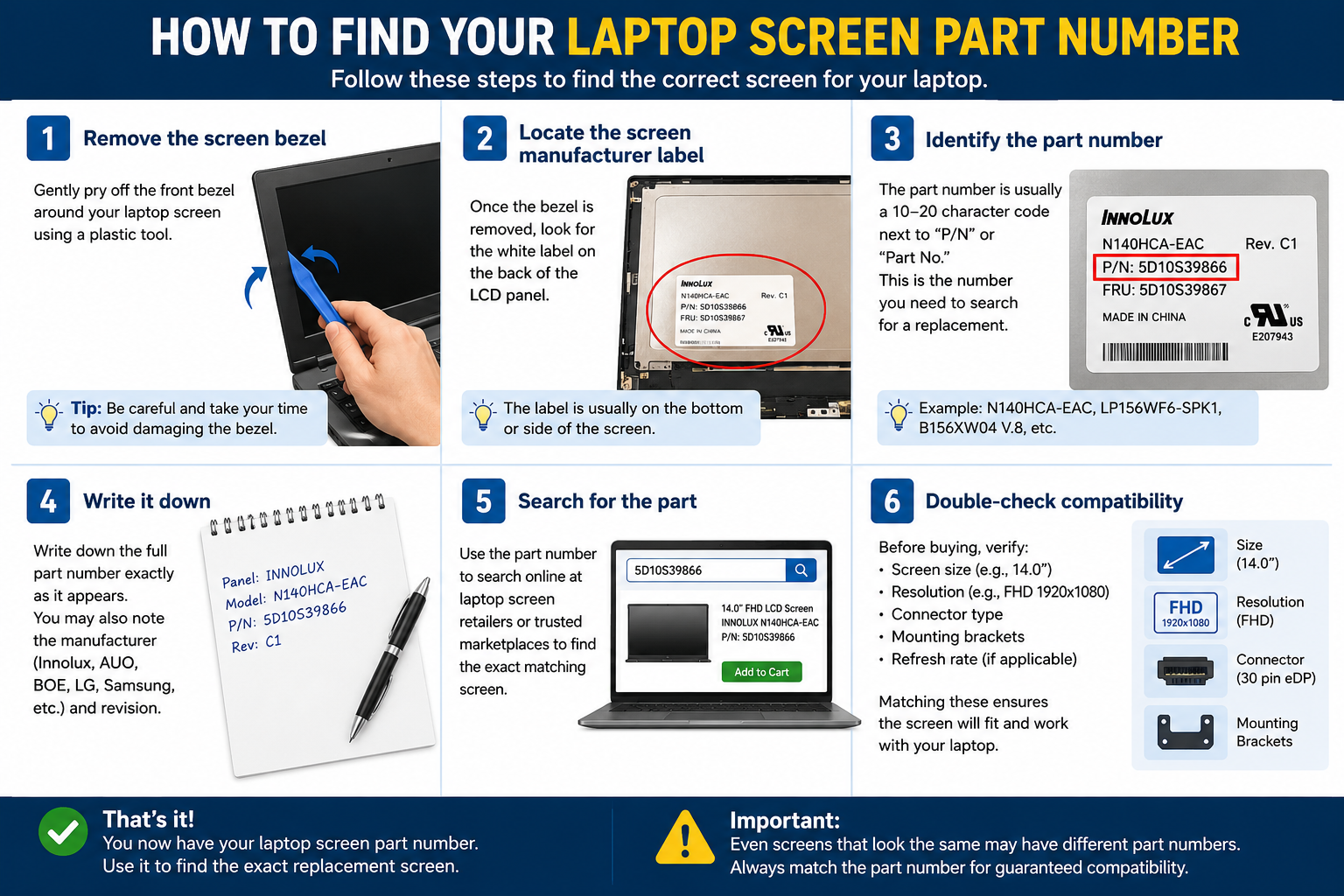
Step 1 — Find Your Laptop Screen Part Number
Before ordering a replacement, you need to identify the exact screen model. The part number is printed on a sticker on the back of your existing screen panel. To find it:
- Power off your laptop completely and unplug it
- Carefully peel back the rubber screw covers around the screen bezel
- Remove the screws and gently pop off the plastic bezel
- Look for a white sticker on the back of the screen — it will show a part number like B156HAN02.0, NE170QDM-NZ1, or similar
Can't open the laptop yet? In Windows, go to Device Manager → Monitors → Properties → Details → Hardware Ids. You'll see a code like MONITOR\AUO38ED. The first three letters are the panel maker (AUO, BOE, LGD, CMN for Innolux) and the rest is the panel code, which helps narrow down the exact part.
Step 2 — Order the Correct Replacement Screen
When ordering your replacement screen, make sure the following match your original panel:
- Screen size (e.g. 15.6", 17.0", 14.0")
- Resolution (e.g. FHD 1920x1080, QHD 2560x1440)
- Connector type and pin count (e.g. 30 pin, 40 pin eDP)
- Surface finish (matte or glossy)
- Refresh rate (60Hz, 120Hz, 144Hz, 240Hz)
- Touch or non-touch
Step 3 — Prepare Your Laptop
- Power off the laptop and disconnect the charger
- If possible, remove the battery
- Place the laptop on a clean, flat surface
- Work in a well-lit area
Step 4 — Remove the Old Screen
- Use a plastic spudger to carefully peel off the rubber screw covers around the screen bezel
- Remove the screws (usually 4–6 screws) and keep them safe
- Starting from a corner, gently prise the plastic bezel away from the screen
- Once the bezel is off, you'll see the screen panel held by metal brackets
- Remove the bracket screws and carefully tilt the screen forward
- You'll see the video cable connector on the back of the screen — gently unplug it
Step 5 — Install the New Screen
- Take your new replacement screen out of its packaging carefully
- Connect the video cable to the new screen firmly
- Position the new screen into the brackets and refit the screws
- Before reassembling fully, power on the laptop to test the new screen
- If the image is good — power off again and refit the bezel
Step 6 — Test Your Repair
- Full image displayed with no lines, dead pixels or discolouration
- Brightness controls working
- Touchscreen responding (if applicable)
- No flickering at different brightness levels
Shop Replacement Laptop Screens
At TechnologyVS, we stock hundreds of Grade A brand new laptop replacement screens for all major brands. Browse our full range at technologyvs.co.uk






Leave a comment
This site is protected by hCaptcha and the hCaptcha Privacy Policy and Terms of Service apply.